Your content, ready to use.
ClipBolt gives text, links, files, and images a place in your work. Save items, organize them into collections, find them again, and use them across apps or with a connected AI client.
Every copy saved, ready to bring back.
You copy an invoice number, then copy an email address right over it. ClipBolt saves your text, links, code, and images automatically as you copy on your Mac. Scroll back through your clipboard history and bring any clip back.
-
Saved as you copy
Copy text, links, code, or images like you always do. Every item goes straight into your clipboard history without extra steps.
-
Text, code, and images
From a terminal command to a receipt photo or a meeting link, your Mac clipboard history keeps all of them together.
-
Scroll and bring back
Browse past copies in the order you grabbed them. Pick the item you lost an hour ago and use it again.
Keep the formatting, or paste plain text.
Copying a table or a styled paragraph often ruins the layout when you paste. On Mac, ClipBolt keeps rich clipboard formats intact, from bold text and lists to Excel tables and Figma copies. Paste the original styling or strip it to plain text.
Video showing formatted and plain text pasting
Demo video
-
Rich formats kept intact
ClipBolt keeps plain text, images, HTML, RTF, tables, Word, Excel, Figma, and Excalidraw copies when you copy on your Mac.
-
Paste in original style
Keep bold headings, working links, bulleted lists, and table cells intact when moving work between your documents and design tools.
-
Switch to plain text
When you only want the raw words without fonts, colors, or links, paste any saved clip as clean plain text.
Type what you remember, find any clip.
Search your clipboard history using words from a clip. ClipBolt checks clip text, AI tags, image descriptions, and text from images, updating results as you type.
-
Search inside screenshots
Find a screenshot or image by typing words that appear inside it, or search by the AI description of the picture.
-
Match by AI tags
Type a topic like invoice, travel, or python to surface related clips even when your search word is not in the text.
-
Results as you type
Matches update with every keystroke across your saved text, links, code, and images so you spot the right clip right away.
One keyboard shortcut opens your history
Switching windows to hunt for a clip breaks your focus. Set your own keyboard shortcut in Settings, press it in any Mac app, and your clipboard history opens with search ready. Pick a clip to paste it straight into your active window. The shortcut shown in the demo is configured for that example.
-
Pick your own keys
Choose the key combination that fits your hands in Settings, so it doesn't clash with shortcuts you already use.
-
Opens with search ready
Press your keyboard shortcut and start typing right away to filter your clipboard history without touching your mouse or trackpad.
-
Auto-paste or copy again
Select a clip to paste it directly into the app you were using, or turn off auto-paste to copy it instead.
Group related clips, pin your daily favorites.
Some clips belong to one project, and others you paste ten times a day. Group related copies into collections for a client, a research topic, or a draft. Pin your everyday clips so they stay at the top of your history.
-
Collections for every project
Gather research quotes, design links, and code snippets for a specific client or draft into one tidy collection.
-
Pin clips to top
Keep your calendar link, billing address, or go-to reply pinned at the top so new copies never push them down.
-
Built for repeat work
Stop retyping the same replies and boilerplate blocks. Grab your pinned items and project collections whenever you need them.
Tagged by AI, organized as you copy.
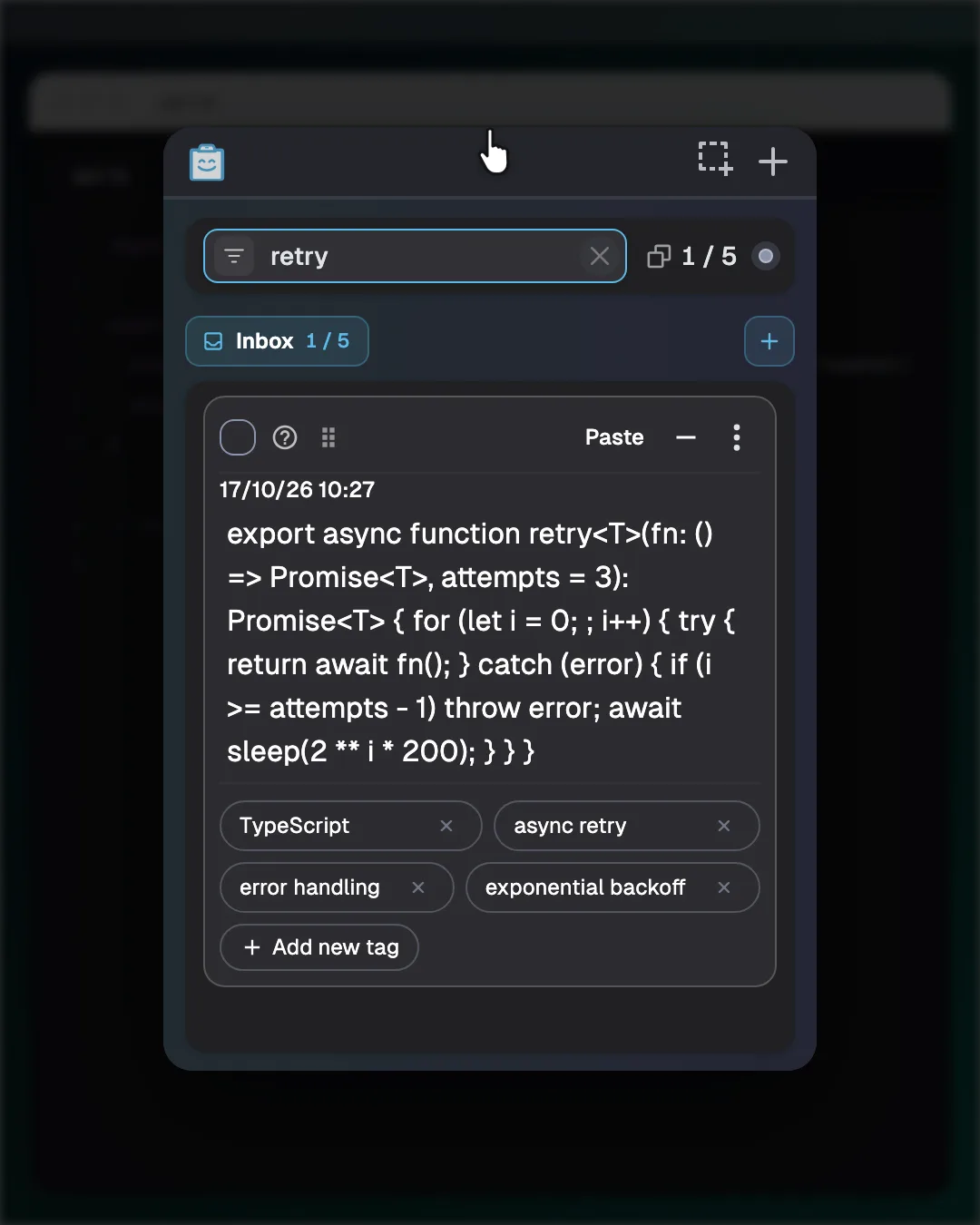
Sorting your clipboard history by hand takes time you do not have. ClipBolt uses AI to add searchable tags to every clip and detects the programming language of copied code. Add your own tags or remove any tag. Your history is stored on your Mac and syncs only if you sign in. Automatic labels send new clips to OpenAI once you allow AI features, and you can turn them off in Settings. Read the Privacy Policy.
-
Automatic AI tags
Every clip gets descriptive tags automatically so you can find it by topic later without manual filing.
-
Recognizes code languages
Copy a function or terminal command and ClipBolt identifies the programming language, so your snippets stay easy to find.
-
Edit tags any time
Add custom tags that match how you work, or remove any tag you don't want.
Fix any clip before you paste it.
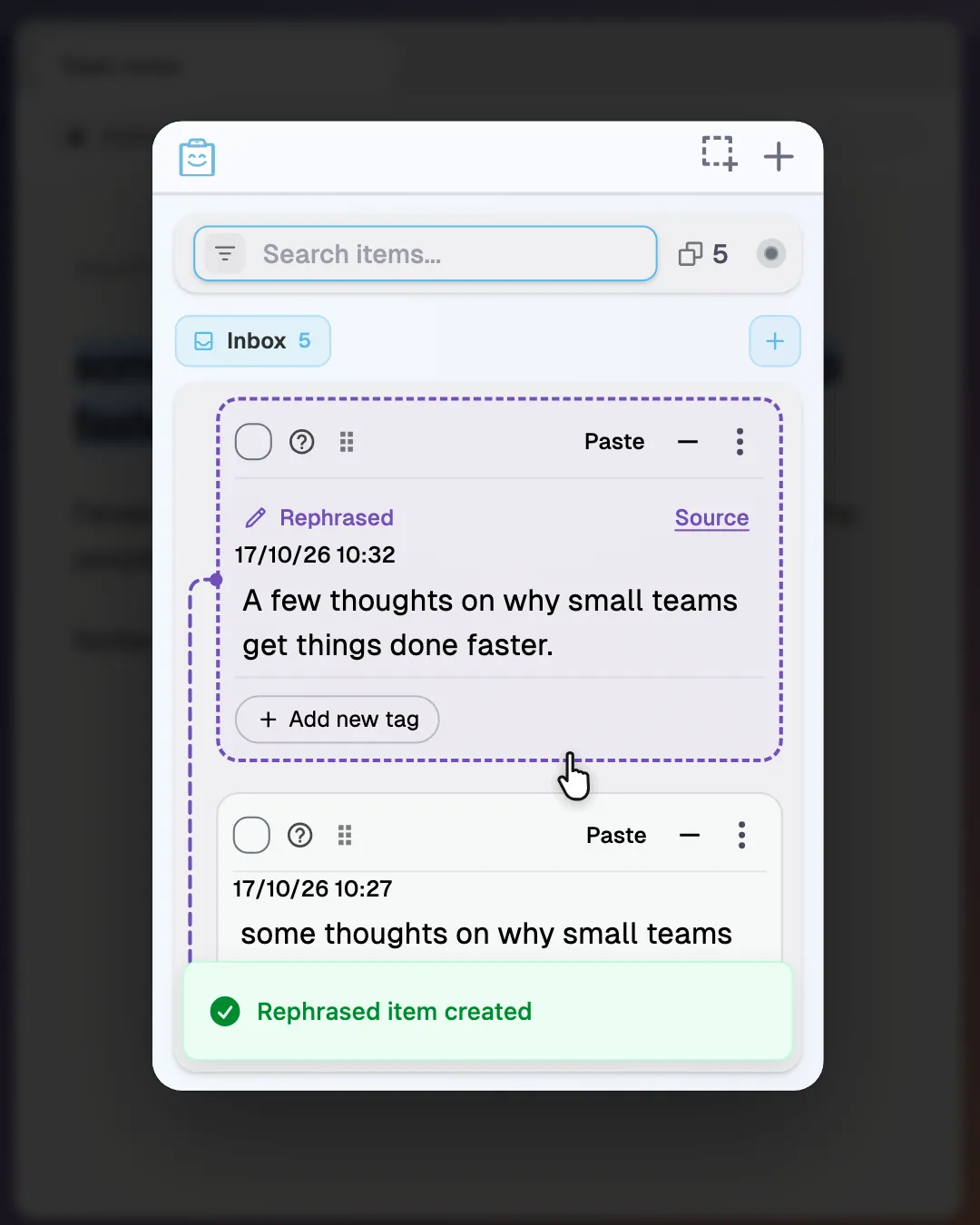
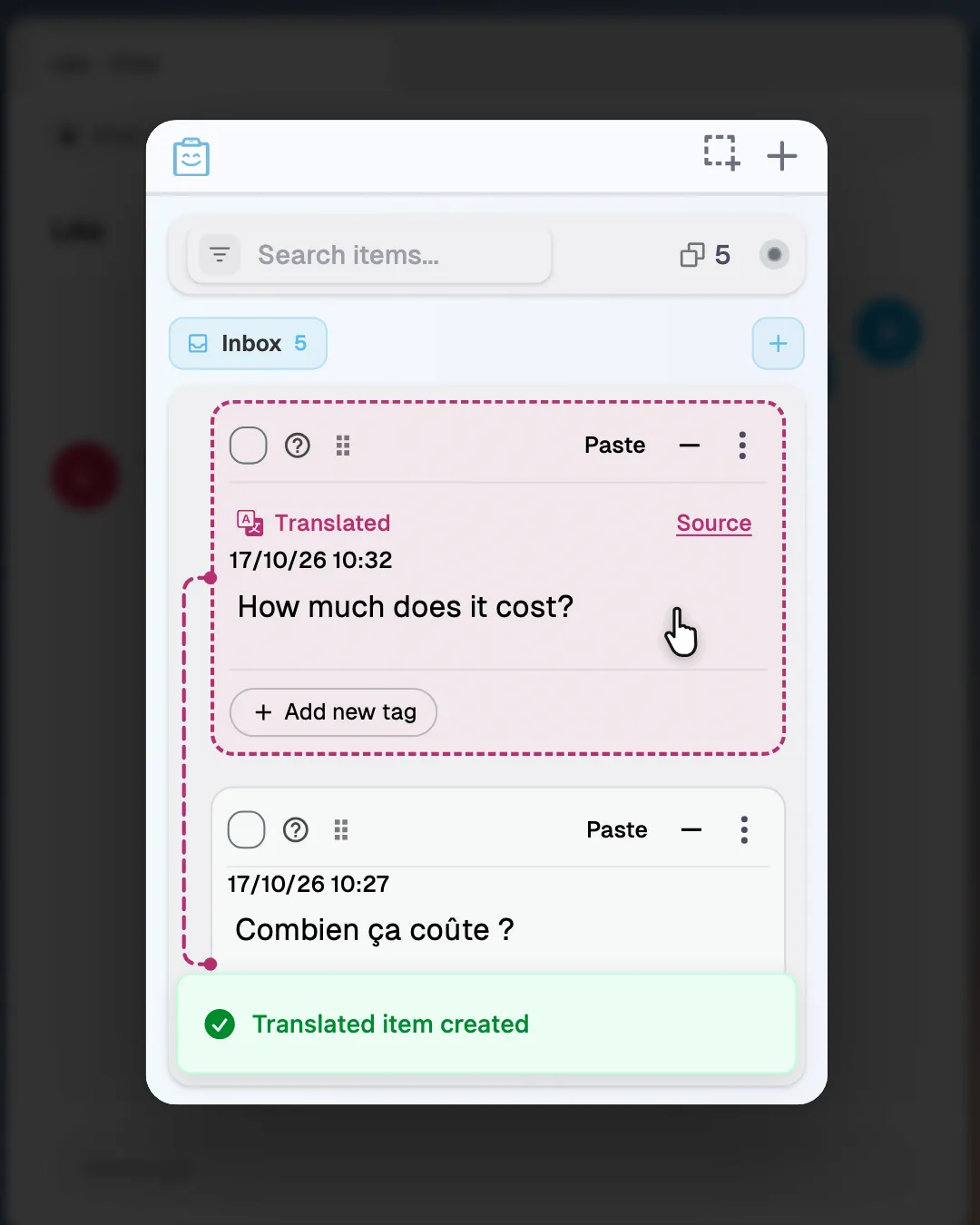
What you copy is often in the wrong tone, in another language, or trapped inside an image. Run built-in AI tools right on any clip to rephrase text, translate between languages, extract text from images, or describe pictures for your notes. AI features run on OpenAI and Google Cloud Vision servers, not on your device, and only after you allow them for your account. Read the Privacy Policy.
Turn rough notes into a polite reply, shorten a long paragraph, or adjust the tone before you paste.
-
Rewrite and translate fast
Adjust the tone or length of rough text, or translate any copied clip without opening a browser tab.
-
Get text from images
Pull editable words out of screenshots, photos, and slides with OCR, or generate clear image descriptions for alt text and captions.
-
Saved with the clip
Every AI result stays attached to your clip, and extracted text and image descriptions become part of your searchable clipboard history.
Capture your screen, search the words inside.
Screenshots usually pile up on your desktop where you can never find them again. Capture any part of your screen from the ClipBolt window on Mac. It lands straight in your clipboard history, ready for OCR text extraction, descriptions, and search.
Demo of screen capture and text extraction
Demo video
-
Capture from ClipBolt
Grab a region of your Mac screen right from the ClipBolt window and skip the clutter of desktop screenshot files.
-
Pull out the text
Extract text from your new screenshot to copy code from a video, grab numbers from a chart, or save a quote.
-
Find screenshots by words
Search for a screenshot days later by typing any word that appeared inside the image or in its AI description.
Pick your clips, ask AI across them.
Pasting separate snippets into a chat window one by one is slow and messy. Select up to 100 clips in ClipBolt, including up to 20 images, and start an AI chat to summarize, compare sources, or write a draft. AI features run on OpenAI and Google Cloud Vision servers, not on your device, and only after you allow them for your account. Read the Privacy Policy.
Multi-clip selection and AI chat window
Demo video
-
Up to 100 clips
Combine up to 100 text clips, links, and code snippets in a single AI conversation without manually copying and pasting each one.
-
Include up to 20 images
Add up to 20 screenshots or photos alongside your text clips so you can ask questions about charts, receipts, and notes.
-
Summarize, compare, or draft
Ask for a quick summary of research clips, compare pricing tables, or pull out the one detail you need right now.
AI agents send results straight to ClipBolt.
Important output from your AI agents often gets buried in long terminal logs or chat threads. Tell an agent "clip this for me" in the middle of a chat, and coding plans, polished prompts, research results, and pipeline logs land in your history.
Agent sending research results to ClipBolt history
Demo video
-
Say clip this for me
Type "clip this for me" during an agent chat and the response goes straight into your ClipBolt history for later.
-
Save plans and prompts
Keep coding plans, polished prompts, research findings, and pipeline logs organized in your clipboard history instead of scrolling back through chats.
-
Ready when you return
Every clip sent by your agents is searchable and ready to review, edit, or paste into your editor when you need it.
Preview, edit, and export every saved clip.
Sometimes you need to check a clip, fix a typo, or clean up old copies before moving on. Inspect rich text, link previews, and image details, edit clip text in place, save clips as files, or select many clips to delete together.
Clip preview pane with edit and export
Demo video
-
Rich previews and details
See formatted text, link previews, and images alongside their extracted OCR text and AI descriptions right in the preview pane.
-
Edit or save files
Fix a typo inside a text clip before pasting, or export any clip to your Mac as a text or image file.
-
Clean up in bulk
Select multiple clips at once and delete them together to keep your clipboard history tidy after finishing a big task.
Set up ClipBolt the way you work.
A tool you use all day should fit right into your Mac setup. Pick light or dark theme, launch ClipBolt at login, choose your keyboard shortcut, and decide whether picking a clip pastes it automatically. Send feedback or bug reports right from the app.
Settings window showing theme and shortcut options
Demo video
-
Light or dark theme
Let ClipBolt match your Mac system appearance automatically by default, or lock it to light or dark mode in Settings.
-
Launch and paste rules
Start ClipBolt automatically when you log in, customize your shortcut, and toggle auto-paste on or off whenever you like.
-
Feedback inside the app
Spot a bug or have an idea for a feature? Send a report straight to the team without leaving ClipBolt.
Common questions about ClipBolt
Find quick answers about features, formats, and AI data handling before you join the waitlist.
What is ClipBolt?
ClipBolt helps you save, organize, and reuse text, links, files, and images. It can capture what you copy on your Mac, group items into collections, and help you find and use them again. You can also use optional AI tools or connect a compatible AI client.
Which devices does ClipBolt support?
ClipBolt is built for Mac first. A Chrome extension and iOS, Android, and Windows versions are on the way. Join the waitlist to hear when the Mac app launches.
How much does ClipBolt cost?
ClipBolt is free to use during the beta. In addition, the first 5,000 early users get ClipBolt free for life. Please note that signing up for the waitlist does not by itself confirm eligibility for one of the 5,000 free-for-life spots.
Does the AI in ClipBolt run on my device?
AI features run on OpenAI and Google Cloud Vision servers, not on your device, and only after you allow them for your account. Read the Privacy Policy.
Can ClipBolt find text inside screenshots and images?
Yes. ClipBolt can extract text from images and screenshots using OCR and generate AI image descriptions. When you search your clipboard history, ClipBolt checks both the words inside your images and the AI descriptions, so you can find a receipt photo or screenshot just by typing a word from it.
Which clipboard formats does ClipBolt keep?
On Mac, ClipBolt preserves formatting when you copy across plain text, images, HTML, RTF, tables, Word, Excel, Figma, and Excalidraw. That means bold text, links, lists, tables, and design elements stay intact. When you are ready to use a clip, you can paste it in its original format or as plain text.
How do I get ClipBolt?
ClipBolt is on a waitlist. Select Join the waitlist on this page and enter your email address. We'll email you when ClipBolt launches. The app is free during beta, and the first 5,000 early users get it free for life.
Beta waitlist open
Keep the things you need ready for your next task.
Join the waitlist and get an email when ClipBolt launches. Free during beta, and free for life for the first 5,000 early users.